QR Code Generator for Trello boards and project management

Share Trello boards instantly with scannable codes. Perfect for team meetings, client handoffs, and project onboarding.
Connecting teams to Trello boards with QR codes
Project coordination breaks down when team members can't quickly access the right Trello board during meetings, site visits, or client presentations. Traditional methods of sharing board links through email or chat apps create friction that slows down collaboration and leaves stakeholders waiting for access.
A Trello QR code transforms any board URL into a scannable code that provides immediate access to project information. Team members simply scan the code with their phone camera to open the specific board, card, or list they need to view or update. This works for both public boards and private boards where users already have appropriate permissions.
This guide covers practical ways to implement QR codes for your Trello workflow. Whether you're managing construction projects, event planning, or software development, these scannable links can reduce access barriers and keep everyone connected to project updates. You'll also learn about static vs dynamic QR codes to choose the right approach for your team's needs.
Real-world applications for Trello QR codes
Teams across industries use Trello QR codes to bridge the gap between physical workspaces and digital project management. These scannable links work particularly well when you need to share project information quickly without typing URLs or searching through email threads. QR code business cards often include project board access for ongoing collaborations.
Construction and field work
Site managers post QR codes on job trailers or safety boards so workers can quickly access daily task lists, safety updates, and progress photos from the field.
Event planning coordination
Event coordinators share vendor boards with suppliers and venue staff through printed QR codes for events, ensuring everyone has real-time access to schedules, contact lists, and setup requirements.
Client project updates
Agencies and consultants include QR codes in project proposals and status reports, giving clients instant access to dedicated boards showing progress, deliverables, and timelines.
Educational project tracking
Teachers and professors create QR codes for class project boards, allowing students to quickly access assignment details, submission requirements, and peer collaboration spaces during lectures.
Creating shareable QR codes for your Trello boards
Setting up a Trello QR code takes just a few minutes and works with any board type, from public project displays to private team workflows.
Open your target Trello board
Navigate to the specific Trello board, list, or card you want to share. Copy the full URL from your browser's address bar. For private boards, ensure your intended users already have access permissions through Trello's sharing settings.

Generate your QR code
Visit qrcodeveloper.com and paste your Trello URL into the generator. The tool automatically creates a scannable code that will open your board on any mobile device or computer.

Customize for professional presentation
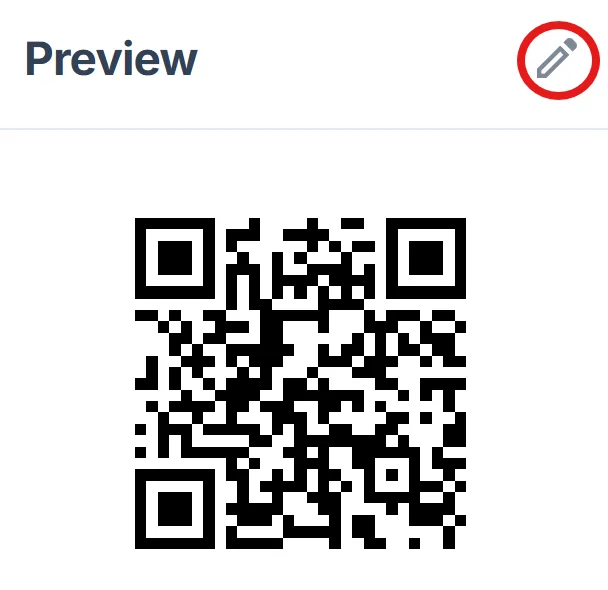
Add your project name or company logo to the QR code design. Choose colors that match your brand or project theme, making the code easily recognizable to team members and stakeholders.
Test scanning functionality
Scan your QR code with different devices to verify it opens the correct Trello board. Test with both iOS and Android phones to ensure compatibility across your team's devices.
Deploy across communication channels
Add the QR code to project documentation, email signatures, printed reports and flyers, or physical workspace displays. Include brief instructions like 'Scan for project board access' to encourage usage.
Best practices for Trello QR code implementation
Smart implementation of Trello QR codes can significantly improve team coordination and reduce the friction of accessing project information.
Include expiration dates on temporary project QR codes and update them regularly to maintain security and ensure links remain active for ongoing collaborations.
Create separate QR codes for different permission levels - one for team members with edit access and another for stakeholders who only need viewing permissions. Consider QR code security best practices when sharing sensitive project information.
Place QR codes prominently in project spaces like conference rooms, workstations, or client meeting areas where team members naturally gather to discuss progress.
Add context labels to your QR codes such as 'Project Alpha Board' or 'Weekly Sprint Tasks' so users know exactly what they're accessing before scanning.
Frequently Asked Questions
Yes, but users must already have permission to view the board through Trello's normal sharing settings. The QR code simply provides a quick way to access boards they're already authorized to see.
QR codes work on any device with a camera and internet connection. Most modern smartphones can scan QR codes directly through their camera app without requiring additional software.
Basic QR codes don't provide scanning analytics, but dynamic QR codes offer tracking features that show scan counts, locations, and device types while maintaining user privacy.
You'll need to generate a new QR code with the updated URL. Consider using dynamic QR codes for frequently changing boards, as they allow URL updates without reprinting the code.
QR codes themselves are safe, but ensure your Trello board permissions are properly configured. Avoid sharing QR codes for sensitive boards in public spaces or unsecured communications.
Related Guides
Ready to create your QR code?
Generate custom QR codes in seconds - free and easy to use.
Create Free QR Code →