Solo entrepreneur automation with QR codes for business efficiency

Automate client onboarding, payments, scheduling, and feedback collection with scannable codes—no technical skills required.
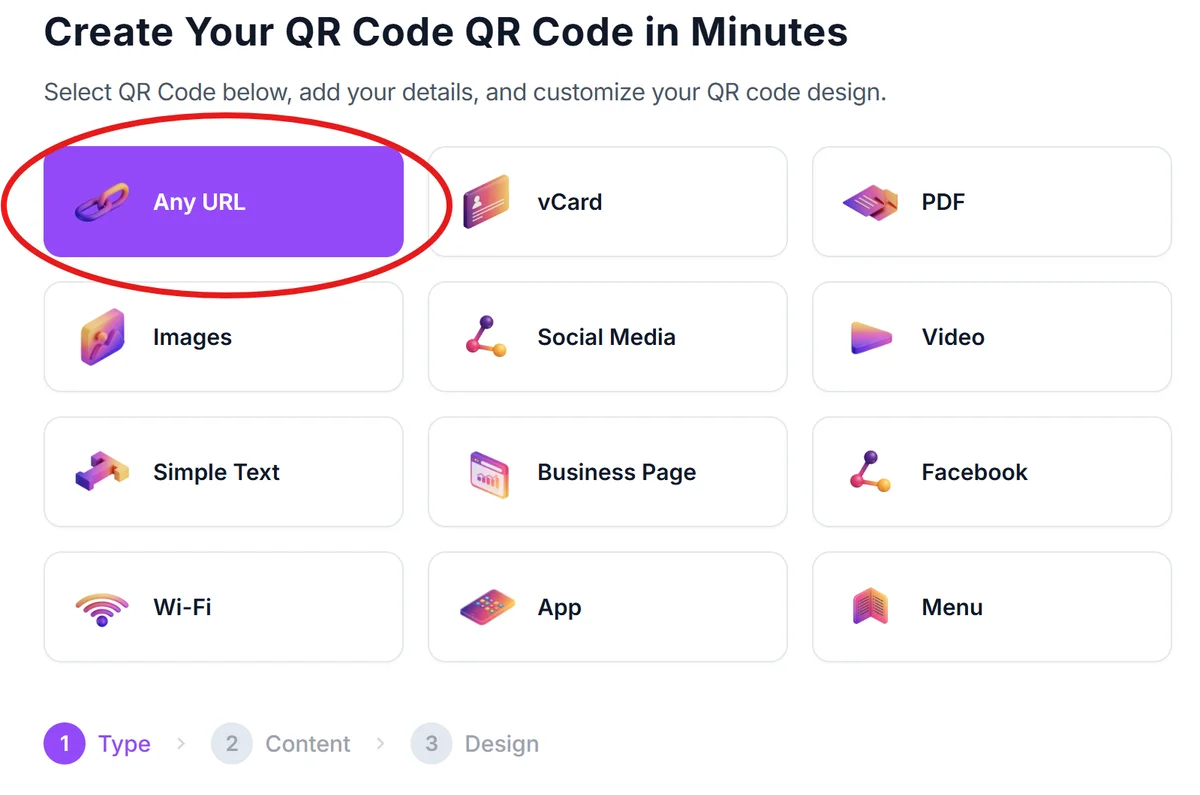
Create Your QR Code QR Code in Minutes
Select QR Code below, add your details, and customize your QR code design.


How QR codes transform solo business operations
Here's a hypothetical: Sarah runs a handmade jewelry business from her home studio and finds herself constantly switching between taking customer orders over the phone, manually updating her inventory spreadsheet, and sending payment links through lengthy text messages. Every time a customer wants to place an order or check product availability, she has to stop her creative work to handle the same repetitive administrative steps. Meanwhile, potential sales slip away when customers can't reach her during her focused crafting hours.

This is a common struggle for many in the creative field, but QR codes can help by acting as digital bridges that connect your physical presence to automated online processes. Instead of manually collecting client information, explaining your services repeatedly, or chasing down payments, you can create scannable codes that instantly direct people to the exact digital workflow you need. A consultation QR code might lead to your scheduling calendar, while a service completion code could trigger an automatic invoice and feedback request.
I've seen solo entrepreneurs reduce their administrative workload by 30-40% using strategic QR code automation. Whether you're a freelance designer, consultant, fitness trainer, or service provider, these codes can handle routine tasks while you focus on what you do best. Throughout this guide, I'll show you how to set up automated workflows using QR Code Developer that work even when you're not available.
Essential automation workflows for one-person businesses
Solo entrepreneurs can automate their most time-consuming tasks by placing QR codes at key touchpoints in their business process. These codes eliminate manual data entry, reduce follow-up emails, and create smoother client experiences. Here's how different types of business QR codes can automate your daily operations.
Client onboarding and intake forms
Replace lengthy email exchanges with QR codes that lead directly to intake forms, contracts, and project questionnaires. New clients can provide all necessary information before your first meeting.
Instant payment and invoice processing
Skip the manual invoicing process by linking QR codes to payment platforms like PayPal, Stripe, or Venmo. Clients can pay immediately after service completion without waiting for emailed invoices, similar to how restaurants streamline ordering with QR code menus.
Automated appointment scheduling
Connect QR codes to your calendar booking system so prospects can schedule consultations, follow-ups, or service appointments without back-and-forth email coordination.
Feedback collection and testimonial requests
Automate your review process by placing QR codes on invoices, business cards, or completion emails that lead to Google Reviews, testimonial forms, or satisfaction surveys.
Building your first automation QR code
Setting up automation QR codes takes just a few minutes, but the time savings compound quickly. I recommend starting with your most frequent manual task - usually client intake or payment collection.
Choose your automation platform and get the link
First, set up your automation tool (Google Forms for intake, Calendly for scheduling, PayPal for payments). Copy the direct link to your form, calendar, or payment page. Then visit qrcodeveloper.com to create your QR code.
Select URL QR code and paste your automation link
Choose the URL option and paste your automation platform link. Make sure the URL goes directly to the action you want (booking page, not your homepage; payment form, not your general contact page).
Customize for professional appearance
Add your brand colors and logo to maintain professional consistency. For automation codes, I recommend including a clear call-to-action in the design like 'Scan to Schedule' or 'Scan to Pay'. Check out our QR code design tips for creating professional-looking codes.

Test the complete automation workflow
Scan your QR code with multiple devices and complete the entire process. Verify that form submissions reach you, calendar bookings appear correctly, and payment notifications arrive as expected.
Place codes at optimal touchpoints
Position QR codes where clients naturally expect next steps: on business cards for scheduling, on invoices for payment, on project completion emails for feedback, or on consultation handouts for follow-up booking.
Maximizing automation efficiency with smart QR placement
The key to successful QR code automation isn't just creating the codes - it's placing them where clients naturally expect to take action and making the process feel seamless rather than forced.
Create context-specific QR codes for different services or client types. A consultation QR code should lead to discovery forms, while a project completion code should trigger payment and feedback workflows.
Include brief instructions near your QR codes explaining what happens after scanning. 'Scan to complete your intake form and schedule our first session' sets clear expectations.
Track which automation QR codes get the most scans using analytics. Focus on improving and replicating your highest-performing workflows rather than creating more codes.
Keep backup manual processes available for clients who prefer traditional methods. Not everyone is comfortable with QR codes, so maintain email and phone alternatives for important business functions.
Frequently Asked Questions
Repetitive tasks that require client action work best: scheduling appointments, collecting intake information, processing payments, gathering feedback, and sharing portfolio or service details. Avoid automating tasks that need personal touch or complex decision-making.
Always maintain traditional alternatives like email forms, phone scheduling, and manual payment processing. Position QR codes as a convenient option rather than a requirement, and have staff ready to assist clients who prefer other methods.
Yes, most QR code generators provide scan analytics, and your automation platforms (Google Forms, Calendly, payment processors) offer completion tracking. Monitor both scan rates and conversion rates to identify which workflows need improvement.
You'll need to update your QR codes with the new URL. To minimize this issue, use permanent links when possible (like custom Calendly URLs) and consider using URL shorteners that allow you to redirect the destination without changing the QR code.
Start with 2-3 codes for your most frequent tasks (typically scheduling, payment, and intake). Add more gradually as you identify other time-consuming manual processes. Too many codes can confuse clients, so focus on quality over quantity.
Related Guides
Ready to create your QR code?
Generate custom QR codes in seconds - free and easy to use.
Create Free QR Code →