QR codes for project updates and team communication

Connect your team to real-time project dashboards and status reports with a simple scan.
How QR codes simplify project communication
Anyone who's lead a group project, whether it be for work or for school, knows how frustrating it can be to keep everyone on the same page. Everyone's got a different schedule, different tasks, and often different devices they use to do their work. Luckily, these common struggles can be somewhat alleviated through clever use of QR codes.
A project updates QR code can link directly to your project management platform, shared document, or custom status page. Team members can scan the code with their phones or other devices and immediately access current timelines, deliverables, meeting notes, and any other project information you want to share. No more hunting through email threads or outdated documents. Understanding how static vs dynamic QR codes work can help you choose the right approach for your project needs.
Whether you're managing construction sites, software development sprints, or marketing campaigns, these codes keep your entire team synchronized. In this guide I'll show you how to create QR codes that connect to contact information, project files, and communication tools that actually get used. So let's get down to business!
Real-world applications for project update QR codes
Project teams across industries use QR codes to bridge the gap between digital project management tools and physical work environments. These codes work particularly well when you need to share PDF documents or connect remote workers to central hubs.
Construction site updates
Post QR codes on job trailers, safety boards, or equipment that link to daily progress photos, safety reports, and schedule changes. Workers scan for instant access to blueprints and change orders.
Remote team synchronization
Include QR codes in video calls, email signatures, or shared workspaces that connect to live project dashboards, team calendars, and communication channels like Slack or Microsoft Teams. You can also integrate them into QR code business cards for seamless professional networking.
Client progress sharing
Add QR codes to proposals, contracts, or meeting materials that link to client portals, project timelines, and milestone reports. Clients can check progress anytime without requesting updates.
Event planning coordination
Share QR codes with vendors, volunteers, and team members that connect to event timelines, contact lists, venue information, and real-time logistics updates during planning and execution. For comprehensive event management, learn how to create event QR codes that streamline attendee communication.
Building your project communication QR code
Creating a project updates QR code takes just a few minutes and can transform how your team accesses information.
Access the QR code generator
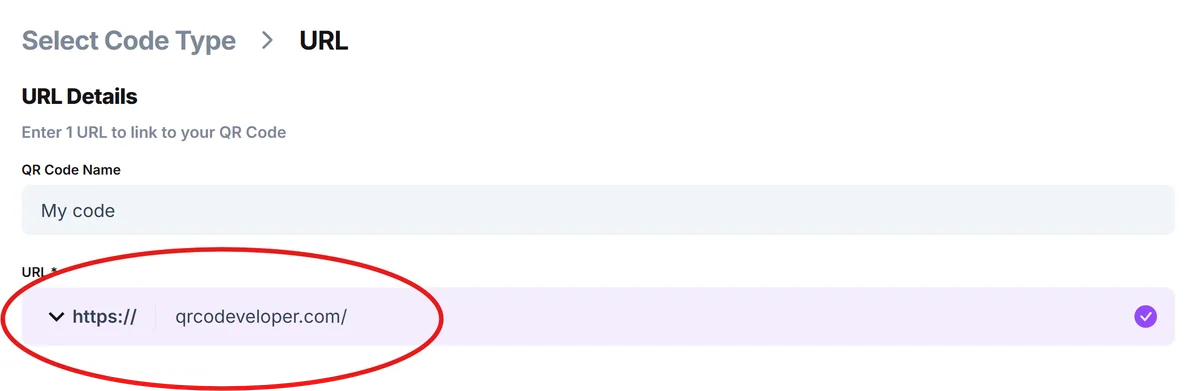
Visit qrcodeveloper.com and select the URL option to create a link-based QR code for your project information.

Enter your project dashboard URL
Paste the link to your project management tool (Asana, Trello, Monday.com), shared Google Drive folder, or custom project status page. Make sure the link is accessible to all team members.
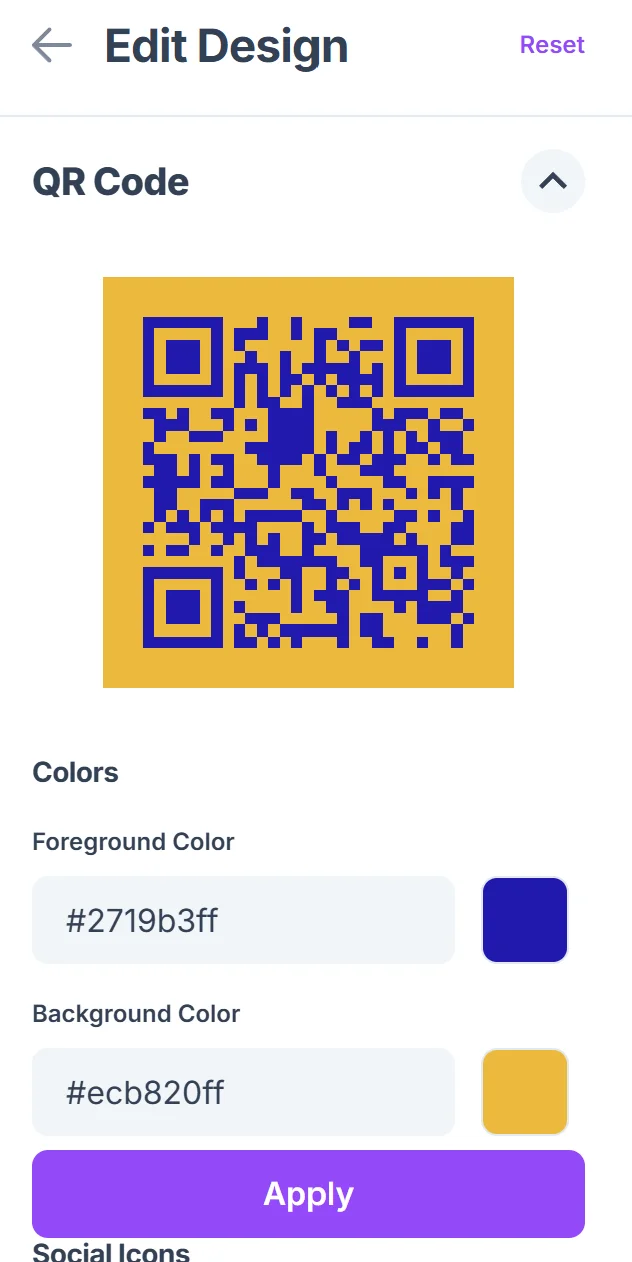
Brand with project colors
Customize the QR code with your project or company colors. Use high contrast combinations and consider adding your logo to make it easily recognizable to team members. Follow proven QR code design tips to ensure optimal scanning performance.

Test across devices
Before distributing, test the QR code on different phones and ensure it opens correctly in both mobile browsers and any required apps. Verify that team members can access the linked content.
Deploy strategically
Place QR codes where team members naturally look for updates: meeting rooms, shared workspaces, email signatures, or printed project materials. Include a brief description of what the code contains.
Best practices for project QR code deployment
These strategies will help you get maximum adoption and effectiveness from your project update QR codes.
Choose a central project hub that stays current - avoid linking to documents that become outdated quickly or require frequent URL changes. Before deployment, review our guide on how to check if a QR code is safe to ensure your team's security.
Add context around your QR codes with labels like 'Scan for project dashboard' or 'Quick access to team updates' so people know what they're accessing
Consider creating different QR codes for different audiences - one for internal team members with full access, another for clients with limited project visibility
Update linked content regularly and notify team members when major changes occur, since they'll expect current information when scanning your code
Frequently Asked Questions
With static QR codes, you'll need to create a new code if you change the destination URL. However, you can use URL shorteners or redirect services to change where the link goes without updating the QR code itself.
Mobile-friendly dashboards work best since most people scan with phones. Avoid linking to large files or complex desktop-only interfaces. Simple web pages, mobile apps, or responsive project management tools provide the best user experience.
Make scanning more convenient than the alternative. If checking project status via QR code is faster than logging into multiple systems or searching through emails, adoption will be natural. Also, demonstrate the QR code during team meetings.
Basic QR codes don't provide scan tracking, but you can use analytics tools on your destination page (like Google Analytics) to see traffic from QR code scans. Some project management platforms also show who accessed shared links.
QR codes themselves don't add security, so protect sensitive project information the same way you would any shared link. Use password-protected documents, private project management tools, or team-specific access controls on your linked content.
Related Guides
Ready to create your QR code?
Generate custom QR codes in seconds - free and easy to use.
Create Free QR Code →