Outlook QR code generator for email sharing and contacts

Share Outlook emails, calendar invites, and contact information instantly through scannable QR codes that bridge desktop and mobile workflows.
How QR codes connect Outlook with mobile devices
Microsoft Outlook handles over 400 million active users worldwide, yet sharing specific emails, calendar events, or contact details between devices can still be frustrating to some. Luckily, QR codes can help by creating instant bridges between your Outlook desktop experience and mobile devices.
An outlook QR code can allow you to easily access email addresses, calendar invitations, contact information, and even specific email threads all with one simple scan on your own device. Instead of manually typing long email addresses or forwarding calendar invites, recipients simply scan a code to access the exact Outlook content you want to share.
Whether you're networking at conferences, sharing meeting details, or distributing contact information, these codes can make it easy to access any Outlook content. I'll show you how to create effective QR codes that work specifically with Outlook's various features and sharing needs.
Professional applications for Outlook QR codes
Outlook QR codes excel in professional environments where quick, accurate information sharing matters most. From conference networking to client communications, these codes eliminate manual data entry errors. Learn more about professional applications in our QR code business cards guide.
Conference networking and contact exchange
Business professionals use QR codes on name badges or business cards to instantly share their Outlook contact information, eliminating the need to manually exchange details.
Meeting invitations and calendar sharing
Event organizers place QR codes on flyers or presentations that automatically add calendar events to attendees' Outlook calendars with all meeting details pre-filled.
Customer support and direct email access
Companies include QR codes on product packaging or documentation that open pre-addressed support emails in Outlook, complete with subject lines and relevant information.
Team collaboration and project communication
Project managers share QR codes that link directly to specific Outlook email threads or shared mailboxes, giving team members instant access to ongoing conversations.
Creating QR codes for Outlook content
Building Outlook QR codes requires understanding the specific URL structures and mailto protocols that trigger the right actions in Microsoft's email client.
Access the QR code generator
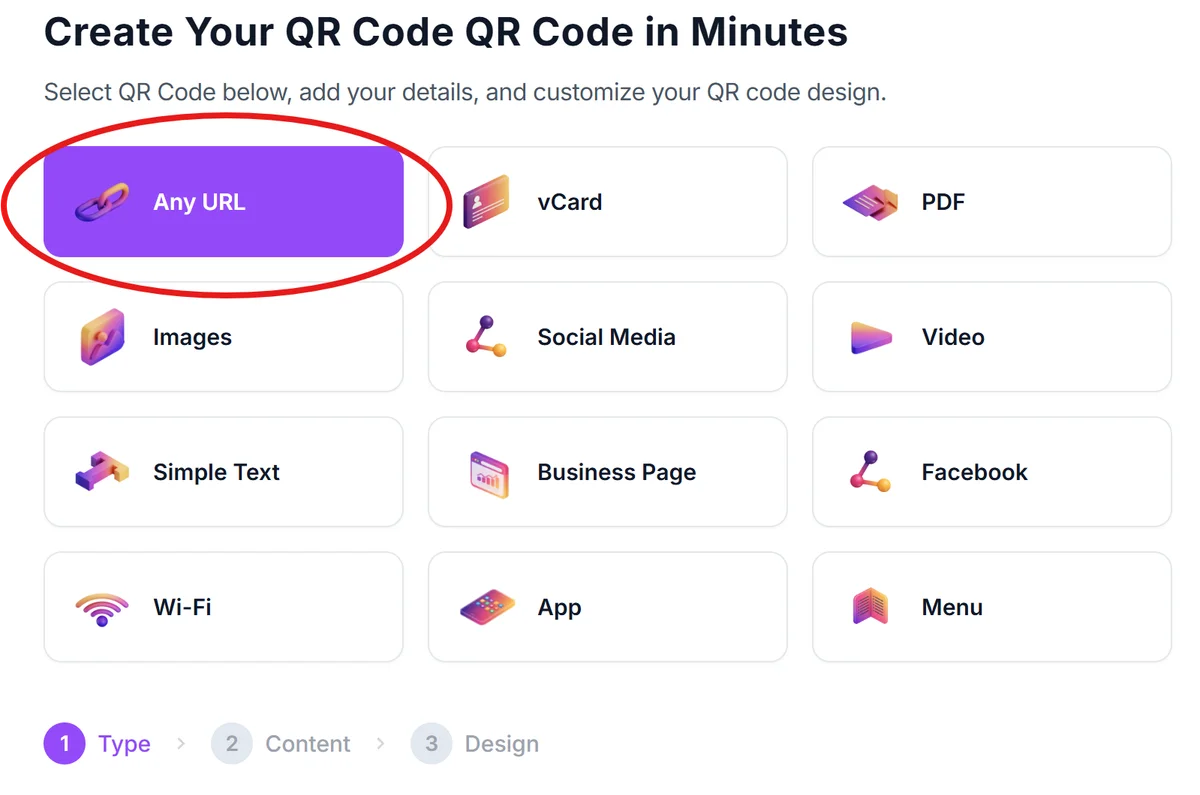
Navigate to qrcodeveloper.com and select the appropriate QR code type based on what Outlook content you want to share - email, contact, or calendar event.
Format your Outlook information
For email QR codes, use the mailto: protocol with your Outlook address. For contact sharing, gather all relevant details including name, email, phone, and company information. Calendar events need date, time, location, and description details.
Customize for professional appearance
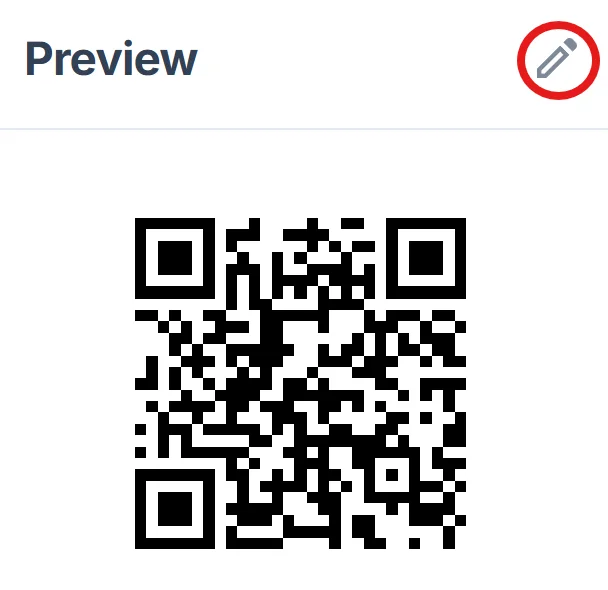
Click on the pencil icon in the Preview window. Choose colors that match your company branding or Outlook's blue theme. Add your logo or company icon to make the QR code instantly recognizable as official communication, following QR code design best practices.
Test across different devices
Scan your QR code with various smartphones to ensure it properly opens Outlook mobile app, Outlook web, or triggers the correct email client behavior on different operating systems.
Deploy in your communication materials
Place the QR code on business cards, email signatures, presentation slides, or printed materials where recipients can easily scan and access your Outlook information.
Best practices for Outlook QR implementation
Successful Outlook QR codes require attention to technical compatibility and user experience across Microsoft's ecosystem.
Include clear instructions like 'Scan to add to Outlook contacts' or 'Scan to join calendar event' so users understand what will happen before scanning
Test QR codes with both Outlook mobile app and Outlook web to ensure consistent behavior across platforms, as some features work differently. Consider the differences between static and dynamic QR codes for your specific use case.
Use high contrast colors and sufficient size (at least 1 inch square) for reliable scanning, especially when printed on business cards or small materials
Consider creating separate QR codes for different Outlook functions rather than trying to combine multiple actions into one complex code
Frequently Asked Questions
Do Outlook QR codes work with all email clients?
QR codes using mailto: protocols work with most email clients, but Outlook-specific features like calendar integration work best when the recipient has Outlook installed on their device.
Can I create QR codes for Outlook calendar events?
Yes, you can create QR codes that add events directly to Outlook calendars using calendar URL formats or vCalendar data that Outlook recognizes and imports automatically.
How do I make QR codes for shared Outlook mailboxes?
Shared mailbox QR codes work best using the shared mailbox email address in a mailto: format, though accessing the actual shared mailbox requires proper permissions and Outlook configuration.
Will these QR codes work on both iPhone and Android?
Yes, both iPhone and Android devices can scan these QR codes, though the exact behavior depends on whether users have Outlook mobile app installed or rely on their default email client.
Can I track who scans my Outlook QR codes?
Basic QR code generators don't provide scanning analytics, but dynamic QR code services can track scan counts, locations, and timing data while still directing users to Outlook.
Related Guides
Ready to create your QR code?
Generate custom QR codes in seconds - free and easy to use.
Create Free QR Code →


