QR code generator for Microsoft Teams meetings and collaboration

Generate scannable codes that instantly connect people to Teams meetings, channels, and shared resources without typing complex links.
Microsoft Teams QR codes for instant meeting access
How many times have you fumbled with typing lengthy Microsoft Teams meeting URLs or struggled to share channel links during time-sensitive moments? I assume a lot, and it sure can be frustrating. Luckily, QR codes can ease the process of manual entry, allowing instant access to meetings and channels, all with a simple scan. No more hunting through email invitations or dealing with complex URLs with potential typos.

A Microsoft Teams QR code makes your meeting links, channel invitations, shared files, or team resources accessible via a scannable square code. All you need to do is simply point your phone camera at the code and you can instantly join meetings, access channels, or view shared content without manual URL entry or app navigation.
In this guide I will cover everything you need to know about QR codes with Microsoft Teams, from basic meeting QR codes to advanced team collaboration setups. I'll also show you how to create codes that work reliably across different devices and explain integration strategies that make business networking and team onboarding more efficient. So let's dive right in!
Practical applications for Teams QR codes
Teams QR codes solve real collaboration challenges across different work environments. From conference rooms to remote onboarding, these codes make team access instant. Understanding static vs dynamic QR codes helps you choose the right approach for different team scenarios.
Conference room meeting displays
Display QR codes on room screens or printed cards so attendees can join without typing meeting IDs. Perfect for recurring meetings or rooms with consistent Teams setups.
Event and webinar registration
Include QR codes on event materials, email signatures, or presentation slides to let participants join Teams events instantly from their mobile devices.
Team onboarding and channel access
Create QR codes for specific Teams channels or shared resources that new employees can scan during orientation to immediately access relevant team spaces and documents. This approach works similarly to contact information QR codes for streamlined onboarding.
Hybrid meeting facilitation
Place QR codes in physical meeting spaces so remote participants can quickly join from their phones while in-person attendees use room systems.
Creating QR codes for Teams meetings and channels
Creating Teams QR codes requires the right meeting link or channel URL and a reliable generator that handles Microsoft's authentication requirements.
Access your Teams meeting or channel link
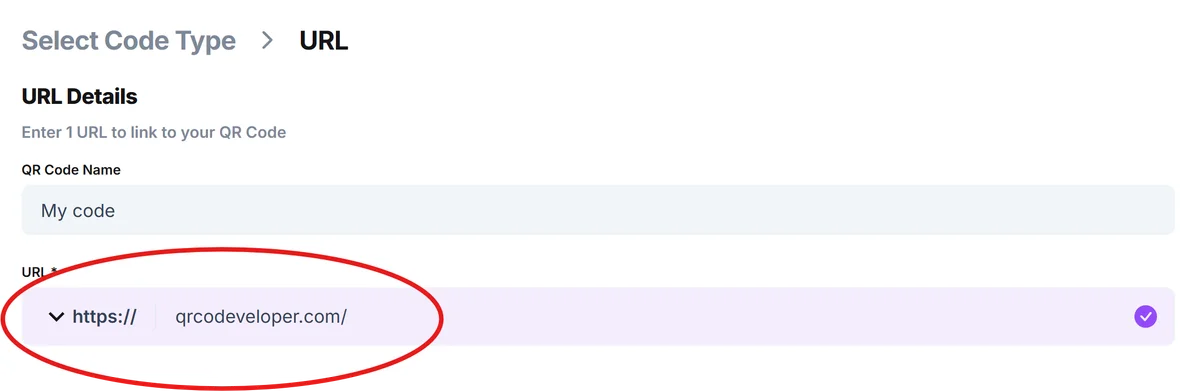
Copy the meeting URL from your Teams calendar invitation or grab the channel link from the Teams app. Visit qrcodeveloper.com to start creating your QR code.
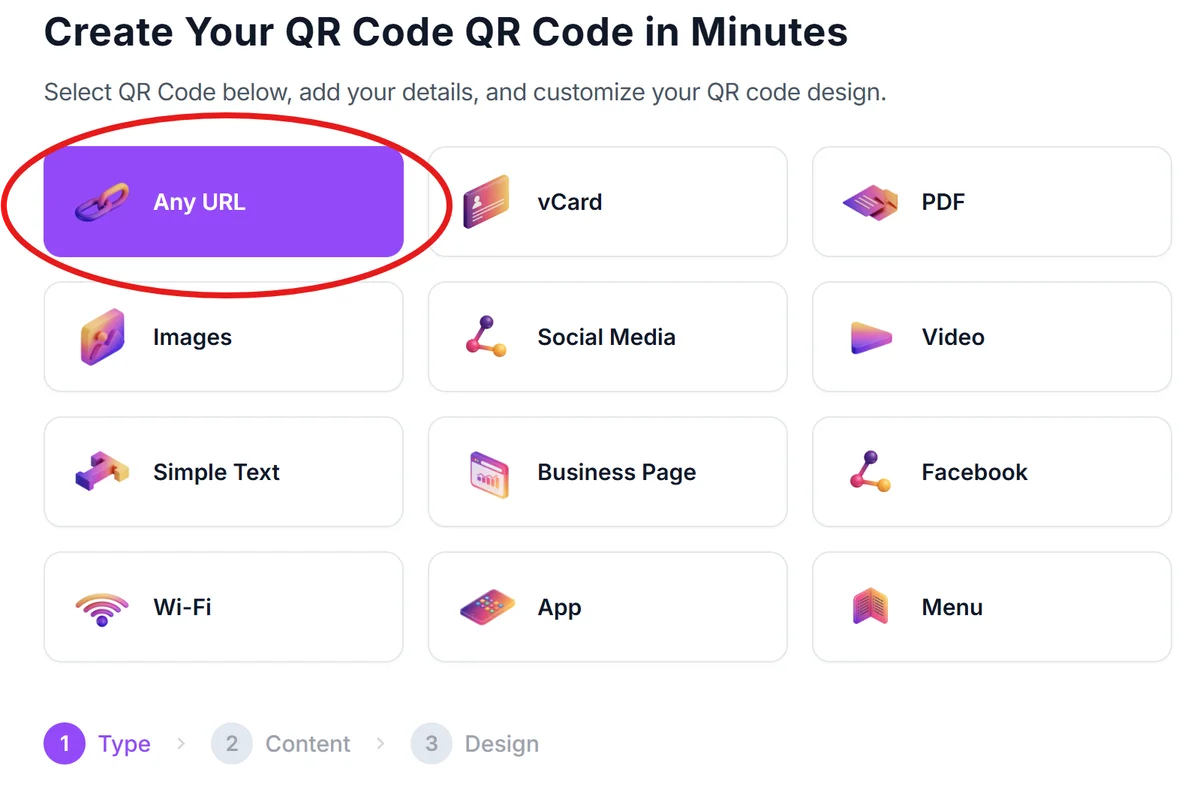
Select URL QR code type
Choose the URL option since Teams links function as web URLs. Paste your complete Teams meeting link or channel URL, ensuring you include any necessary parameters for proper authentication.
Customize for Teams branding
Click on the pencil icon in the Preview window to further customize the look of your code. Add your company colors or Teams-themed design elements. Consider using Microsoft's brand colors (blue tones) to make the code immediately recognizable as a Teams-related resource. Learn more about effective QR code design to maximize scannability.

Test across different devices
Scan the code with both iOS and Android devices to verify it opens correctly in the Teams app or web browser. Test with team members who have different Teams app versions installed.
Deploy with clear instructions
Place codes where team members expect to find meeting access. Include brief text like 'Scan to join Teams meeting' to clarify the code's purpose, especially for less tech-savvy team members.
Best practices for Teams QR code deployment
Successful Teams QR code implementation requires understanding Microsoft's authentication flow and your team's device preferences.
Test with guest users and external participants since Teams handles authentication differently for non-organization members. Some may need to use web versions instead of the app. Consider QR code security implications when sharing meeting access with external users.
Create separate QR codes for recurring meetings versus one-time events. Recurring meeting codes can be reused, while event-specific codes should be updated for each session.
Position codes at eye level in conference rooms and meeting spaces. Include backup text with the meeting ID for users who prefer manual entry or experience scanning difficulties.
Monitor code performance through Teams meeting analytics to understand how many participants join via QR codes versus traditional methods. This data helps refine your deployment strategy.
Frequently Asked Questions
Do Teams QR codes work for external meeting participants?
Yes, but external users may be redirected to Teams web version instead of the mobile app, depending on their organization's settings and whether they have Teams installed.
Can I create QR codes for private Teams channels?
You can create codes for private channels, but users must already have access permissions. The QR code doesn't bypass Teams security - it just provides convenient access for authorized members.
How do I update QR codes for recurring Teams meetings?
Recurring meetings typically use the same URL, so one QR code works for all instances. For meetings with changing details, consider using dynamic QR codes that let you update the destination without reprinting.
Will Teams QR codes work on all smartphone cameras?
Most modern smartphones can scan QR codes with their built-in camera apps. For older devices, users may need to download a QR code scanner app or use the Teams mobile app's built-in scanner.
Are there any costs for creating Teams meeting QR codes?
Basic QR code generation is free. You only pay for premium features like custom branding, analytics tracking, or dynamic codes that can be updated after creation.
Related Guides
Ready to create your QR code?
Generate custom QR codes in seconds - free and easy to use.
Create Free QR Code →