Mentimeter QR Code Generator: Connect audiences instantly

Bridge the gap between your presentation and audience participation with scannable codes that eliminate typing barriers.
QR codes for Mentimeter presentations
What happens when you have 200 people in an auditorium trying to type 'menti.com' and a 6-digit code on their phones? Absolute chaos! Fumbled presentations, frustrated audiences, and that awkward pause while everyone struggles to join your interactive poll. This is exactly why smart presenters are switching to QR codes for their Mentimeter sessions.
A Mentimeter QR code contains your presentation's join URL, allowing participants to scan and instantly access your interactive polls, quizzes, and word clouds. Instead of manually typing the website and code, attendees can simply point their phone camera at your QR code and get connected in seconds. This works for any Mentimeter presentation type - from corporate training sessions to university lectures, similar to how QR codes for online surveys streamline data collection.
Throughout this article, I'll show you exactly how to create effective Mentimeter QR codes and share effective strategies. I'll also go over how these codes integrate with other event QR code strategies for complete engagement solutions.
When to use Mentimeter QR codes
Mentimeter QR codes work best in situations where you need immediate audience participation without technical friction. These scenarios benefit most from instant connection capabilities, and many presenters combine them with QR codes on flyers for pre-event engagement.
Large conference presentations
Auditoriums with 100+ people where typing URLs becomes a bottleneck. QR codes eliminate the wait time and keep your presentation momentum.
Training workshops and corporate meetings
Professional settings where you need quick feedback, pulse checks, or knowledge assessments without disrupting the flow of discussion. Many professionals also integrate these with QR code business cards for seamless networking and follow-up engagement.
University lectures and classrooms
Academic environments where student engagement is crucial, and you want to collect anonymous feedback or test comprehension in real-time.
Hybrid and virtual events
Online presentations where participants join from multiple devices and platforms. QR codes work across all devices and eliminate platform-specific joining issues.
Creating your Mentimeter QR code
Building a Mentimeter QR code takes just a few minutes, but the setup order matters for the best audience experience.
Get your Mentimeter presentation URL
Open your Mentimeter presentation and copy the full participation URL (usually menti.com plus your presentation code). This is what your QR code will contain.
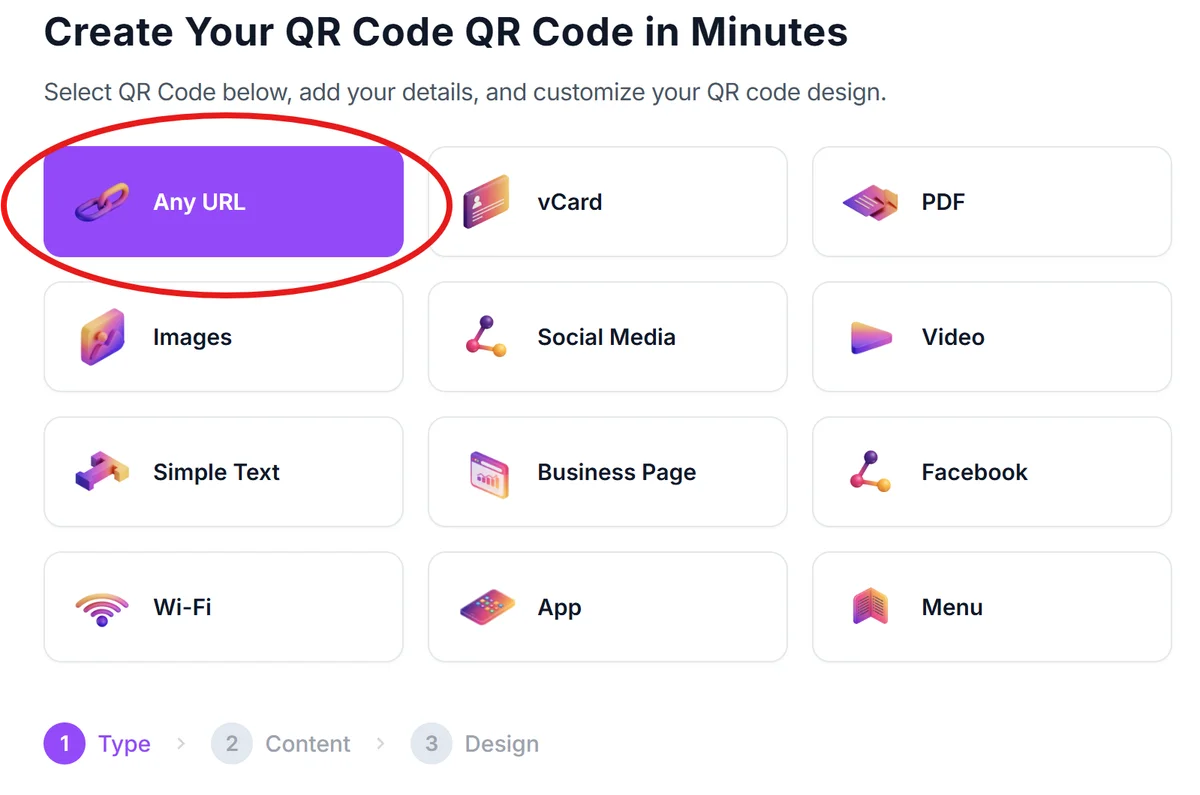
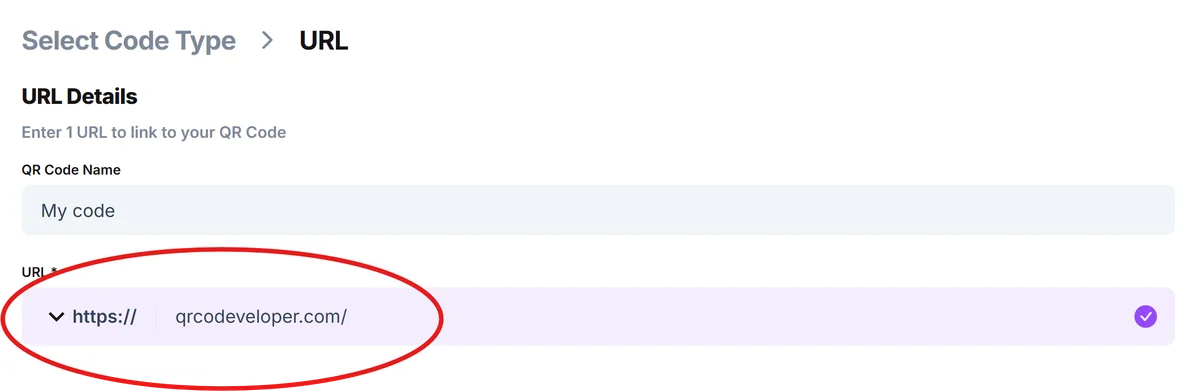
Generate the QR code
Visit qrcodeveloper.com and paste your Mentimeter URL into the URL field. The generator will create a scannable code that links directly to your presentation.
Customize for presentation visibility
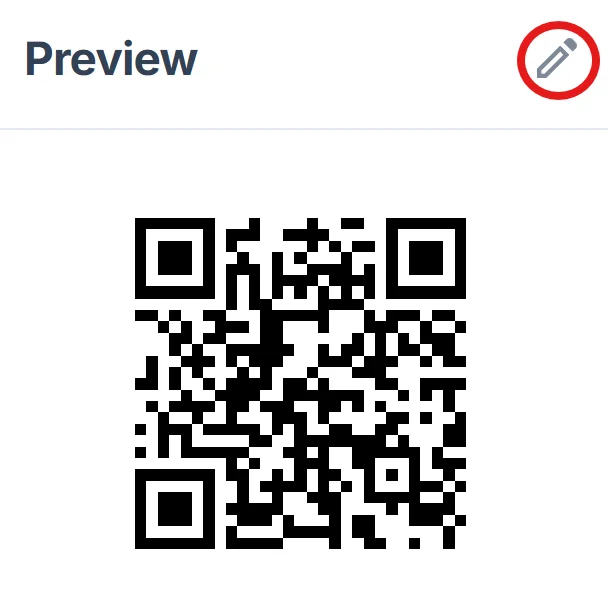
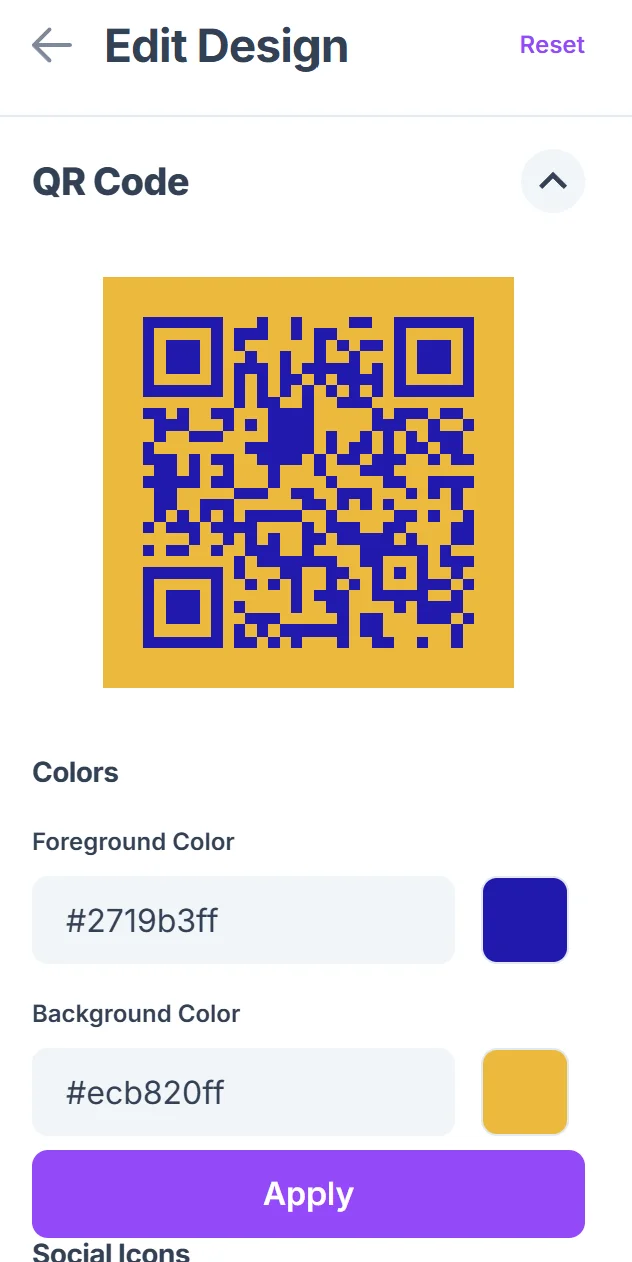
Choose high contrast colors (dark QR code on light background works best for projection). Size the code large enough to scan from the back of your venue - typically 3x3 inches minimum for rooms over 50 people. For more detailed guidance, check our QR code design tips to ensure optimal scanning performance.
Test from audience perspective
Scan your QR code from different distances and lighting conditions. Test it on both iOS and Android devices to ensure compatibility across your expected audience.
Add to your presentation slides
Place the QR code on a dedicated slide with clear instructions like 'Scan to join' or 'Point your camera here to participate.' Keep this slide visible while people are joining.
Presentation engagement best practices
Getting people to scan is only half the battle. These strategies ensure your Mentimeter QR code actually improves audience participation:
Display your QR code before you start talking about it. Put it on screen early so people can scan while you're setting up, rather than making everyone wait during your presentation flow. This approach works particularly well when combined with QR codes for landing pages that provide additional context or resources.
Include backup instructions alongside your QR code. Add 'Or visit menti.com and enter code XXXXX' for participants whose cameras don't work or who prefer manual entry.
Size your QR code for your largest venue. If you present in different room sizes, create your code large enough for auditorium scanning - it will work perfectly in smaller rooms too.
Test your presentation URL before generating the QR code. Make sure your Mentimeter presentation is published and accessible, and that the URL works from different devices and networks.
Frequently Asked Questions
Do I need to create a new QR code for each Mentimeter presentation?
Yes, each Mentimeter presentation has a unique URL and access code, so you'll need a separate QR code for each presentation. However, you can reuse the same QR code if you're running the same presentation multiple times.
Will my Mentimeter QR code work on all phone types?
Modern smartphones (iOS 11+ and Android 8+) can scan QR codes directly with their camera apps. Older phones may need a QR code scanner app, but this covers over 95% of current devices.
How large should I make my Mentimeter QR code for projection?
For rooms with 50+ people, make your QR code at least 3x3 inches on screen. For auditoriums over 200 people, go larger - 4x4 inches or more. The rule is: if someone in the back row can't scan it, it's too small.
Can I customize the colors of my Mentimeter QR code?
Yes, but stick to high contrast combinations for best scanning results. Dark blue or black QR codes on white backgrounds work reliably when projected. Avoid light colors or low contrast combinations that become hard to scan under presentation lighting.
Is there a cost to create Mentimeter QR codes?
Creating the QR code itself is free through most generators. Your costs come from your Mentimeter subscription plan, which determines how many participants can join your presentations and what features you can use.
Related Guides
Ready to create your QR code?
Generate custom QR codes in seconds - free and easy to use.
Create Free QR Code →