QR codes for Google Drive, Docs, Sheets, and Forms sharing

Share Google Workspace files instantly without typing long URLs or searching through email attachments—just scan and access.
Sharing Google Workspace files with QR codes
More educators and professionals are turning to QR codes as a simple way to access digital spaces, eliminating the hassle of sharing complex Google Drive links and hoping that your students can access them. This growing shift toward QR-based document sharing reflects a broader movement away from cumbersome URL copying and toward instant, scan-to-access methods, like QR codes.
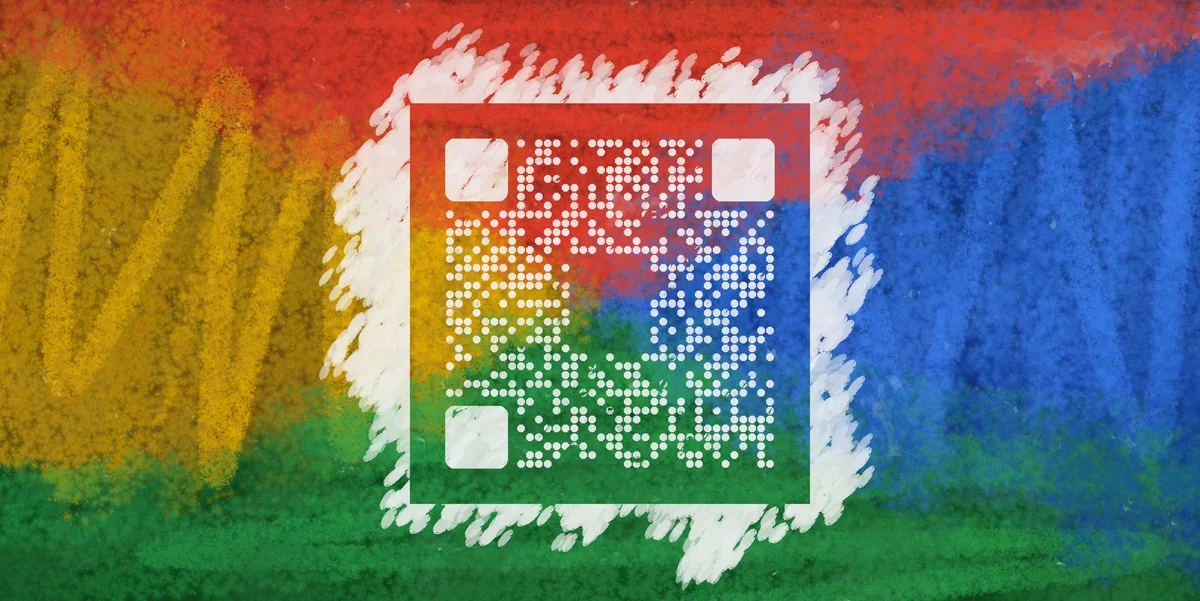
QR codes can ease the tension of accessing essential material by turning any Google Drive file, Document, Sheet, or Form into a scannable code. Students can then instantly access class materials, meeting attendees can jump straight to shared agendas, and survey respondents can reach forms without typing complex URLs. The QR code contains the direct link to your Google file, making sharing as simple as pointing a phone camera.
In this guide I'll walk you through everything you need to know about creating and using QR codes for Google Workspace files. You'll also want to check out our guide on PDF QR codes if you're sharing downloadable documents alongside your Google files.
Real-world applications for Google file QR codes
Google Workspace QR codes solve sharing problems across education, business, and personal projects. Here are the most effective ways people use them, plus tips for sharing contact information alongside collaborative documents.
Classroom document distribution
Teachers can post QR codes on whiteboards or handouts so students can instantly access lesson materials, assignment sheets, or collaborative Google Docs without typing URLs.
Meeting agenda sharing
Project managers can include QR codes in meeting invitations or display them on conference room screens, giving attendees immediate access to shared Google Sheets or Docs.
Event feedback collection
Event organizers can place QR codes on tables, slides, or printed materials to direct attendees to Google Forms for feedback, registration, or survey completion. This approach works particularly well when combined with event QR codes for comprehensive event management.
Client file sharing
Consultants and freelancers can include QR codes in proposals or presentations, allowing clients to quickly access shared Google Drive folders or collaborative spreadsheets. Many professionals also incorporate these into their QR code business cards for seamless portfolio sharing.
Creating QR codes for your Google files
The process works for any Google Workspace file—whether it's a Drive folder, Document, Sheet, or Form. Here's how to set it up:
Get your Google file's shareable link
Open your Google file and click the 'Share' button. Make sure sharing permissions are set correctly (view, comment, or edit access), then copy the shareable link. Visit qrcodeveloper.com to start creating your QR code.
Paste the Google link
Select 'URL' as your QR code type and paste your Google Drive, Docs, Sheets, or Forms link into the URL field. The generator will automatically create a QR code for your file.


Customize for your context
Add colors that match your brand or classroom theme. For Forms, consider using your organization's colors. For shared documents, keep designs professional and easy to scan. Learn more about effective visual approaches in our QR code design tips guide.
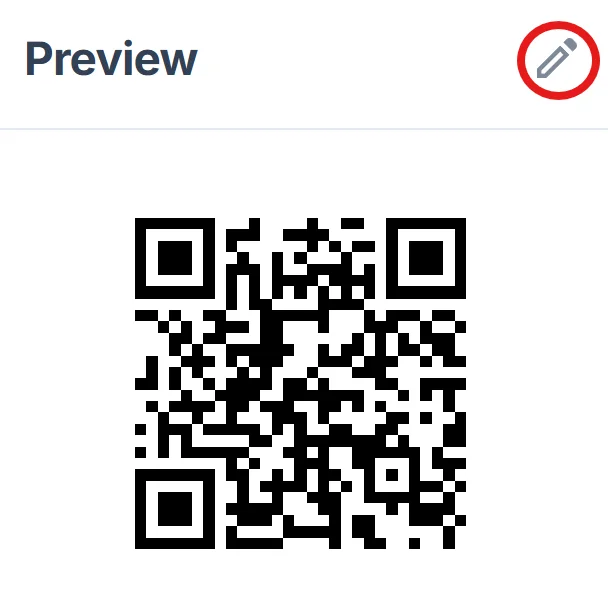
Test access permissions
Before distributing, scan your QR code with a different device to ensure the link works and that users have appropriate access. Check that they're not prompted for unnecessary permissions.
Display or distribute strategically
For classrooms, post QR codes where students can easily scan them. For meetings, include them in agendas or display on screens. For forms, place them where your target audience will see them most naturally. Consider creating QR code stickers for permanent classroom displays or reusable meeting materials.
Best practices for Google Workspace QR codes
These strategies will help you get the most out of QR codes for Google file sharing while avoiding common pitfalls:
Always test your QR codes with the same permission level your audience will have—what works for you as the file owner might not work for viewers
Include brief instructions near your QR code explaining what file it leads to, especially for Google Forms where people need context about what they're filling out. For comprehensive feedback collection, explore our guide on QR codes for online surveys to maximize response rates.
For frequently updated files like class schedules or project trackers, use the same QR code consistently so people can bookmark or save it
Consider creating separate QR codes for view-only versus collaborative access to the same document, clearly labeling which is which
Frequently Asked Questions
Yes, but you'll need to adjust sharing permissions first. The file must be set to 'Anyone with the link' or shared with specific people for the QR code to work properly.
QR codes work fine with Forms requiring Google sign-in. Users will be prompted to sign in after scanning, then directed to your form automatically.
QR codes themselves don't provide scan analytics, but Google Workspace files have their own view and edit tracking. You can see file activity in Google Drive's activity panel.
If you make a file private or change permissions, your QR code might stop working for some users. Always test QR codes after changing sharing settings.
No, QR codes work with any size Google file. However, very large files might take longer to load on mobile devices, so consider user experience when sharing large spreadsheets or documents.
Related Guides
Ready to create your QR code?
Generate custom QR codes in seconds - free and easy to use.
Create Free QR Code →