Google Classroom QR codes for instant class access

Simplify student enrollment with scannable classroom codes. Perfect for first-day setup, substitute teachers, and shared learning spaces.
How Google Classroom QR codes simplify class management
What if students could join your Google Classroom with a simple phone scan instead of typing long class codes? Google Classroom QR codes eliminate the frustration of students struggling to enter invitation codes correctly, especially during the first week of classes when everyone's trying to get organized.
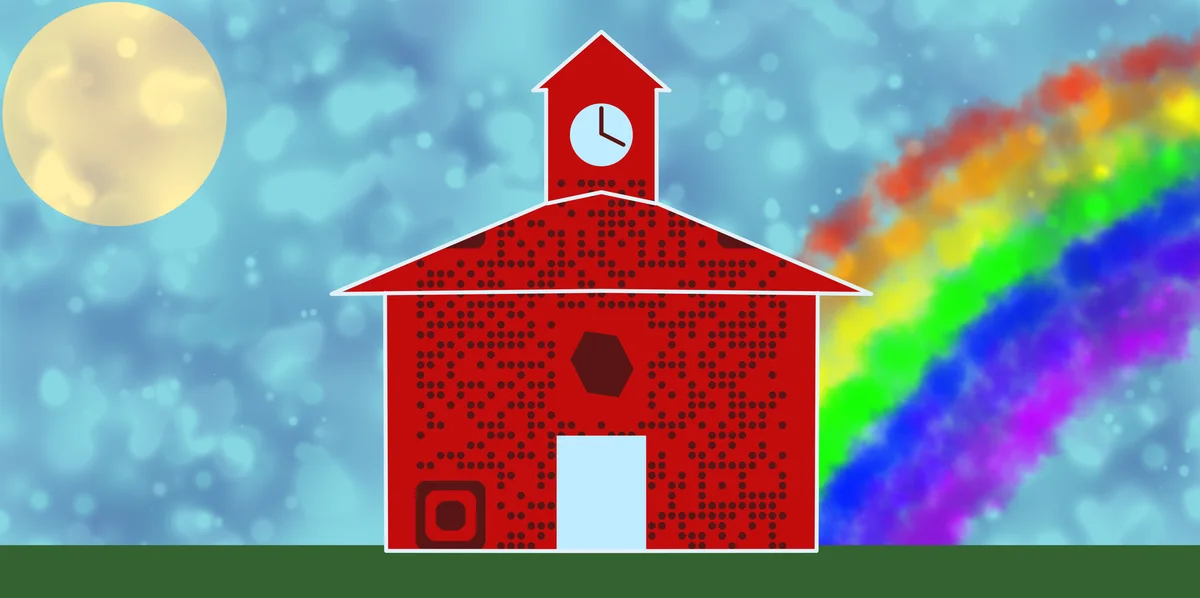
A Google Classroom QR code contains a direct link to your classroom, assignment, or resource. When students scan it with their phone camera, they're instantly directed to the correct page without needing to navigate through multiple screens or remember complex codes. This works particularly well for substitute teachers, guest speakers, or when you need students to access specific assignments quickly.
Teachers across different grade levels are discovering how much time these codes save during class transitions and homework distribution. I'll walk you through the practical ways educators use these codes and how to create them using QR Code Developer for your own classroom needs.
Practical applications for educators and students
Google Classroom QR codes solve real classroom challenges, from the chaos of first-day enrollments to making sure every student can access homework assignments. These codes work especially well when combined with other educational tools like event QR codes for school activities.
Class enrollment and orientation
Display QR codes during open houses or first-day activities so students and parents can join your classroom instantly without writing down codes.
Assignment distribution
Create codes for specific assignments or projects that students can scan from handouts, whiteboards, or homework sheets to access detailed instructions. This approach works similarly to turning PDFs into QR codes for easy document sharing.
Resource sharing during lessons
Post QR codes on presentation slides that link directly to supplementary materials, videos, or interactive activities students need during class. For video content, you might also consider creating YouTube QR codes for educational videos.
Substitute teacher support
Leave QR codes in substitute plans that provide instant access to lesson materials, assignment templates, and classroom resources without sharing login credentials.
Creating QR codes for your Google Classroom
Setting up QR codes for your Google Classroom takes just a few minutes and works with any classroom link or specific assignment URL.
Navigate to your classroom URL
Open your Google Classroom and copy the URL from your browser's address bar. This works for your main classroom page, specific assignments, or any Google Classroom resource you want to share. Then visit qrcodeveloper.com to begin creating your code.
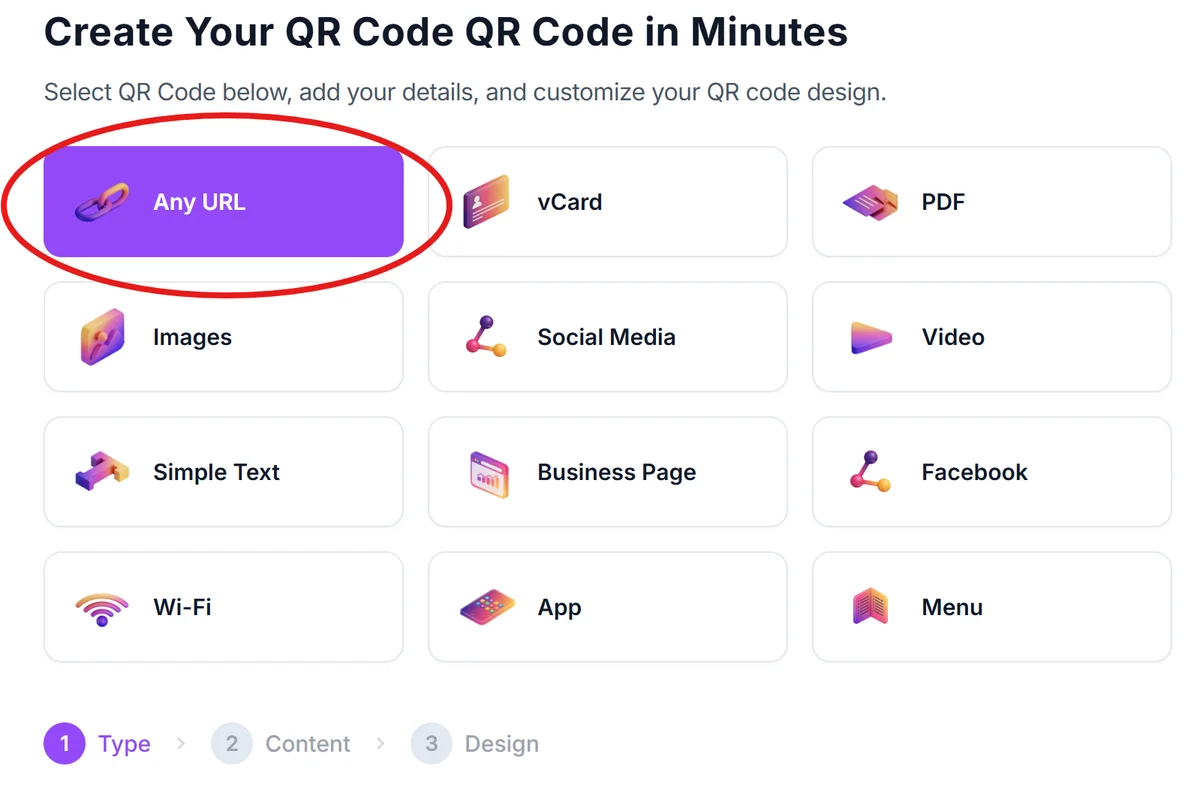
Paste your Google Classroom link
Select 'URL' as your QR code type and paste your copied Google Classroom link into the text field. The generator will automatically create a scannable code that directs students to your specific classroom or assignment.
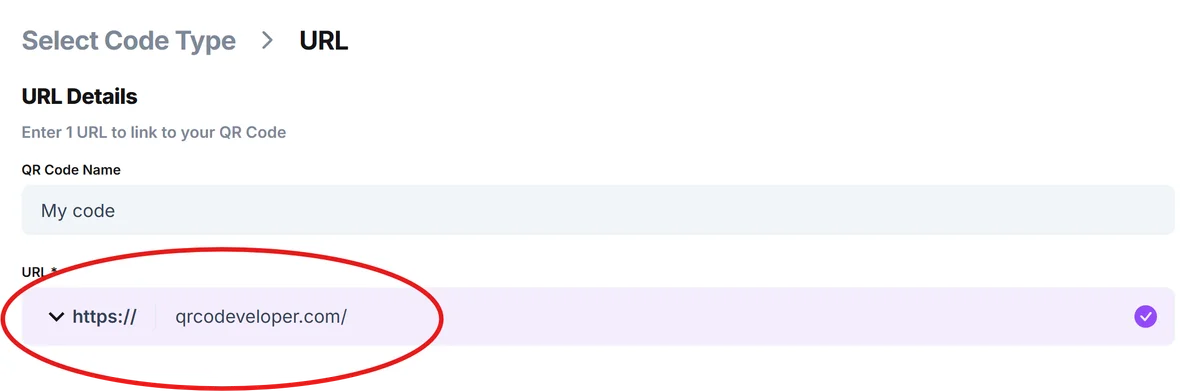
Apply educational branding
Choose colors that match your school or classroom theme. Many teachers use their school colors or create consistent branding across all their classroom materials for easy recognition.
Download and test functionality
Save your QR code as a high-resolution image and test it by scanning with your phone to ensure it directs to the correct Google Classroom page before sharing with students.
Display in strategic locations
Add the QR code to handouts, post it on your classroom wall, include it in parent newsletters, or display it during virtual meetings for easy access across different learning environments. Consider creating QR code stickers for student notebooks or classroom supplies.
Best practices for classroom QR code implementation
These strategies help ensure your Google Classroom QR codes work smoothly for students of all tech comfort levels and different learning situations.
Create separate QR codes for different purposes - one for joining your classroom, others for specific assignments or resources. This prevents confusion and makes it easier to track which materials students are accessing. Understanding the different types of QR codes can help you choose the best format for each classroom need.
Print QR codes large enough for easy scanning, especially for younger students who might need multiple attempts. A 2x2 inch minimum size works well for most classroom applications and handout materials.
Include simple instructions like 'Point your camera at this code' or 'Use your phone camera to scan' since not all students are familiar with QR code scanning, particularly in elementary grades.
Keep backup access methods available by including the Google Classroom code or shortened URL alongside your QR code. This helps when students have older phones or technical difficulties with scanning.
Frequently Asked Questions
No, most modern smartphones can scan QR codes directly through the built-in camera app. Students just need to point their camera at the code and tap the notification that appears.
Yes, you can create QR codes for any Google Classroom URL, including individual assignments, announcements, or resource pages. Just copy the specific URL and use it to generate your QR code.
QR codes linking to your main classroom will continue working even when you add new content. However, codes linking to specific assignments or pages will only work as long as those particular items remain published and accessible.
Google Classroom's activity dashboard shows when students access materials, but it won't specifically indicate they used a QR code versus typing the URL. You can gauge usage by observing how quickly students access materials after you share codes.
QR codes themselves don't collect personal data - they simply contain the same URL you'd share normally. However, ensure your Google Classroom privacy settings are appropriate since QR codes make your classroom more easily accessible to anyone who sees the code.
Related Guides
Ready to create your QR code?
Generate custom QR codes in seconds - free and easy to use.
Create Free QR Code →