QR code generator for FTP file sharing and server access

Generate scannable codes that instantly connect users to FTP servers for secure file transfers and remote access.
How QR codes simplify FTP server access
Picture this: you're at a client meeting and need to share a 500MB presentation file. Email attachments fail, cloud storage requires lengthy permission setups, and USB drives feel outdated. Your FTP server has the file ready, but explaining server addresses, ports, and login credentials takes precious meeting time.

FTP QR codes solve this connection complexity by encoding all server details - hostname, port, username, and directory path - into a single scannable code. Users simply scan and connect directly to your FTP server without manually entering technical information or struggling with complex server configurations.
This approach works particularly well for businesses managing large file transfers, development teams sharing code repositories, or any organization that regularly provides FTP access to clients and partners. Throughout this guide, I'll show you how to create these connection codes using QR Code Developer and implement them securely in your workflow.
Professional applications for FTP QR codes
FTP QR codes bridge the gap between technical file sharing and user-friendly access. They're particularly valuable in environments where large files, secure transfers, or direct server access are essential. For related file sharing approaches, explore our PDF QR code guide.
Development team collaboration
Software teams use FTP QR codes to share code repositories, build files, and development assets with remote team members without exposing server credentials in chat messages.
Client file delivery
Design agencies and consultants provide FTP access for large project files, allowing clients to download completed work, review materials, or upload feedback documents securely. This complements other professional sharing methods like QR code business cards for comprehensive client communication.
Media production workflows
Video editors, photographers, and content creators share raw footage, high-resolution images, and project files through FTP servers accessible via QR codes at production meetings.
Educational resource distribution
Universities and training organizations distribute course materials, software packages, and research data through FTP servers, with QR codes simplifying student and faculty access.
Creating FTP connection QR codes
Building an FTP QR code requires encoding server connection details into a format that FTP clients can interpret when scanned.
Access the QR code generator
Visit qrcodeveloper.com and select the URL or text QR code option, as FTP connections are typically encoded as URLs or connection strings.
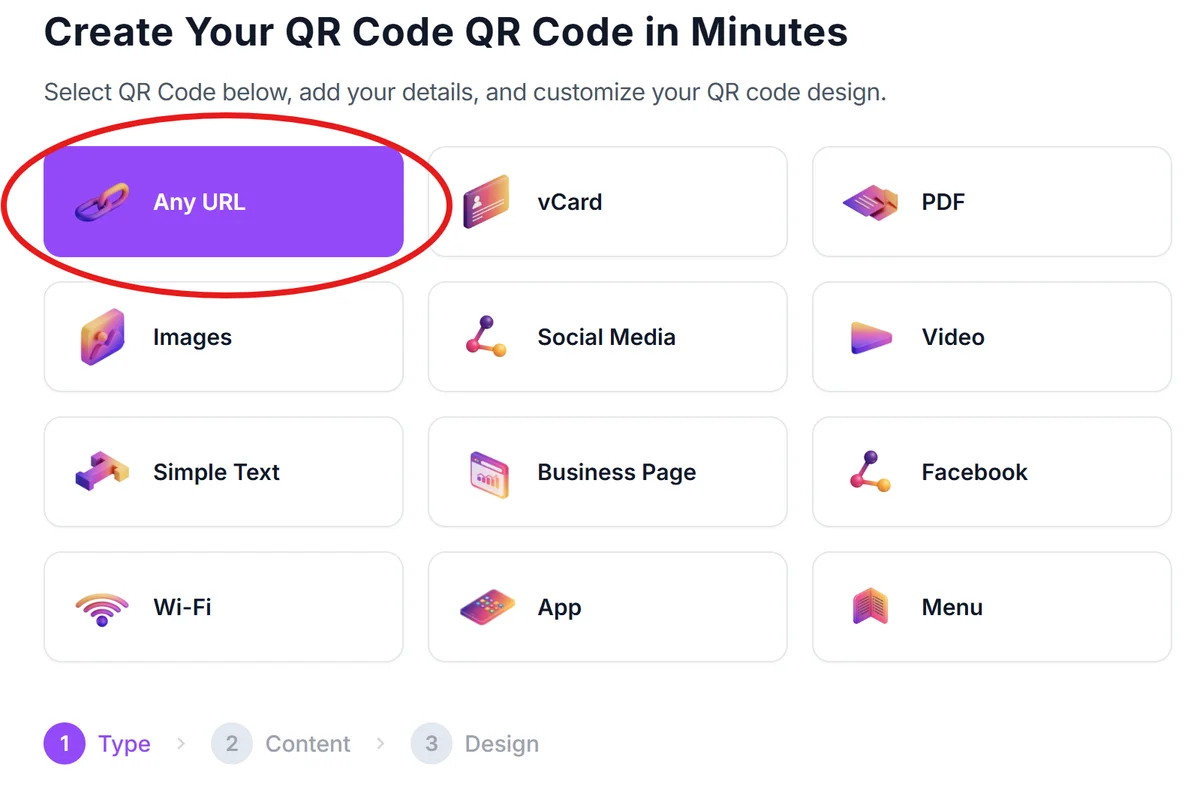
Format your FTP connection string
Create an FTP URL following this format: ftp://username:[email protected]:21/directory/path or ftp://[email protected] for password-protected connections where users enter credentials separately.

Configure security settings
Choose whether to include credentials directly in the QR code for convenience or exclude passwords for enhanced security, requiring users to enter them manually after scanning.
Test connection compatibility
Verify that your QR code works with common FTP clients like FileZilla, WinSCP, or mobile FTP apps by scanning with different devices and applications. Learn more about scanning QR codes from photos if you need to test from screenshots or printed materials.
Document access instructions
Create simple instructions explaining which FTP client to use and any additional steps needed after scanning, since FTP connections may require specific software or settings.
Security best practices for FTP QR codes
FTP connections involve server access and file transfers, making security considerations essential when creating and sharing these QR codes. For comprehensive security guidance, review our <a href="https://qrcodeveloper.com/blog/secure-qr-codes/">QR code safety guide</a>.
Never include passwords directly in QR codes for sensitive servers - use username-only formats that prompt for password entry after connection
Set up temporary FTP accounts with limited permissions and expiration dates specifically for QR code access, rather than using administrative credentials. Consider implementing dynamic QR codes that allow you to update server credentials without reprinting codes
Test QR codes with the actual FTP clients your users will employ, as different applications handle FTP URLs differently and may require specific formatting
Consider using SFTP (secure FTP) connections when possible and ensure your QR codes specify the correct protocol to prevent connection failures
Frequently Asked Questions
Most modern FTP clients can interpret FTP URLs from QR codes, but compatibility varies. FileZilla, WinSCP, and many mobile FTP apps support this functionality, though some may require manual configuration after scanning.
Including passwords in QR codes creates security risks since anyone who scans the code gains server access. It's better to use username-only formats or temporary credentials with limited permissions.
Use the same process but format your connection string as sftp://[email protected]:22/path instead of ftp://. Many clients automatically detect the secure protocol when scanning.
Most devices will either prompt to download an FTP app or display the connection string as text. The QR code won't cause harm, but users need appropriate software to establish the FTP connection.
QR code generators typically don't track FTP connections, but your FTP server logs will show connection attempts and successful logins, allowing you to monitor access patterns and usage.
Related Guides
Ready to create your QR code?
Generate custom QR codes in seconds - free and easy to use.
Create Free QR Code →