Discord QR Code Generator: Share servers instantly with scannable codes

Grow your Discord community faster with scannable invite codes that work on flyers, streams, and social posts.
How Discord QR codes eliminate invite link friction
Discord communities can lose potential members every time someone tries to type a complex invite link on their phone. These URLs links can be difficult to type and even more difficult to remember. Luckily, a QR code that directs to a Discord server can eliminate these issues entirely.
A Discord QR code converts your server invite link into a scannable code that can connect to a server or profile directly on any smartphone. Instead of asking people to type discord.gg/xyz123abc, they simply scan your code and land in your server immediately.
Gaming events, streaming setups, and online communities use these codes to grow their Discord presence faster. Similar to how event QR codes work for gatherings, Discord codes can get more people involved in a community much faster. In this guide I'll show you how to create one using QR Code Developer and where to place it for maximum impact for your community growth.
Where Discord QR codes build gaming communities
Discord QR codes work anywhere you may want to convert offline interactions into online community members, like at a gaming event or convention. Consider combining them with QR code business cards for networking at gaming events.
Gaming convention booths
Display QR codes at your booth so attendees can join your Discord server without stopping to type long URLs during busy convention hours.
Twitch stream overlays
Add QR codes to your stream overlay so mobile viewers can quickly join your Discord community without typing in chat commands.
Local gaming meetups
Print QR codes on flyers or table tents so players at board game cafes or LAN parties can connect to your ongoing Discord community. Learn more about effective QR code placement on flyers to maximize scans.
Generate your Discord server QR code
Creating a Discord QR code takes about two minutes once you have your server invite link ready. The process works the same whether you're sharing a server or your personal Discord profile.
Get your Discord invite link
Open Discord and go to your server settings. Click 'Invites' then 'Create Invite' to generate a shareable link. Copy this URL - it should look like discord.gg/yourcode.
Open the QR code generator
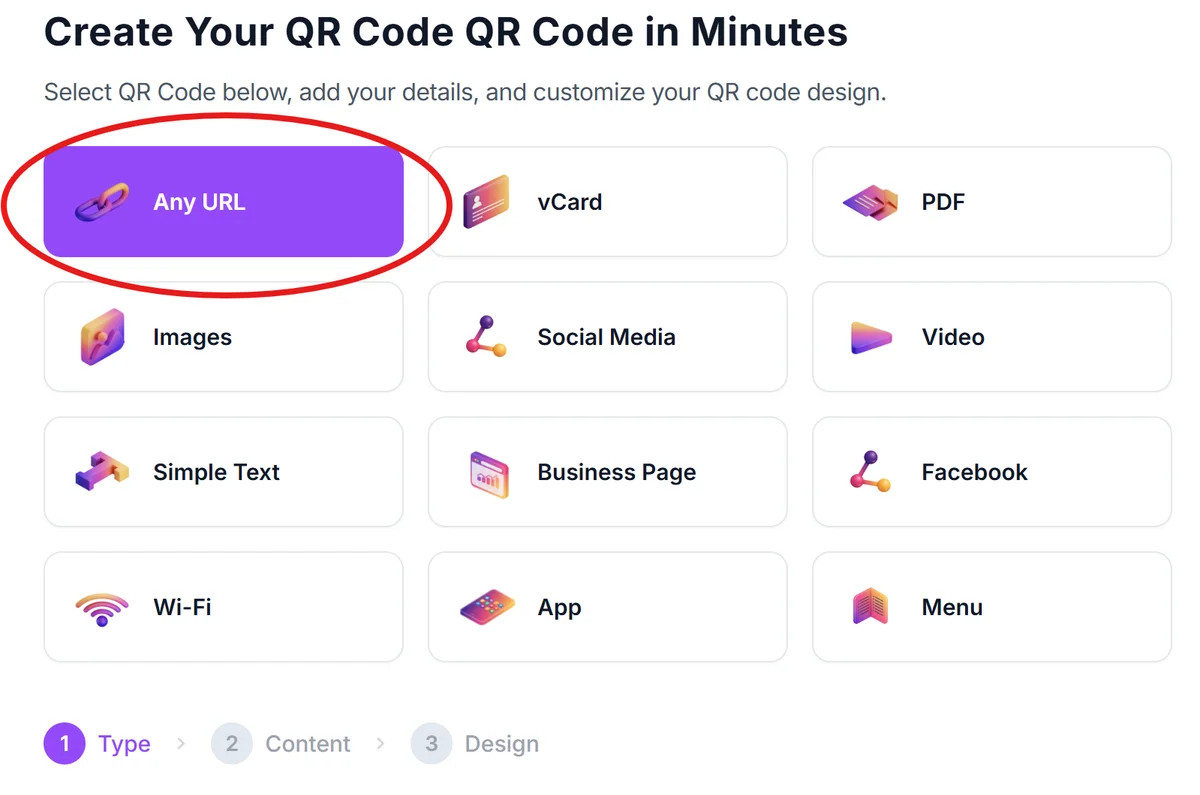
Visit qrcodeveloper.com and select 'URL' as your QR code type. This works for any Discord link including server invites and profile links.
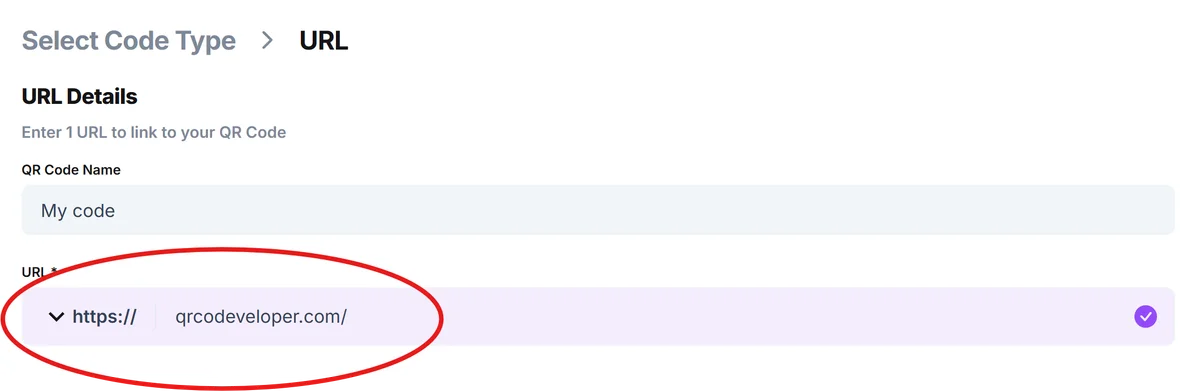
Paste your Discord URL
Enter your Discord invite link in the URL field. The generator will immediately create a QR code that opens Discord when scanned on mobile devices.
Customize for Discord branding
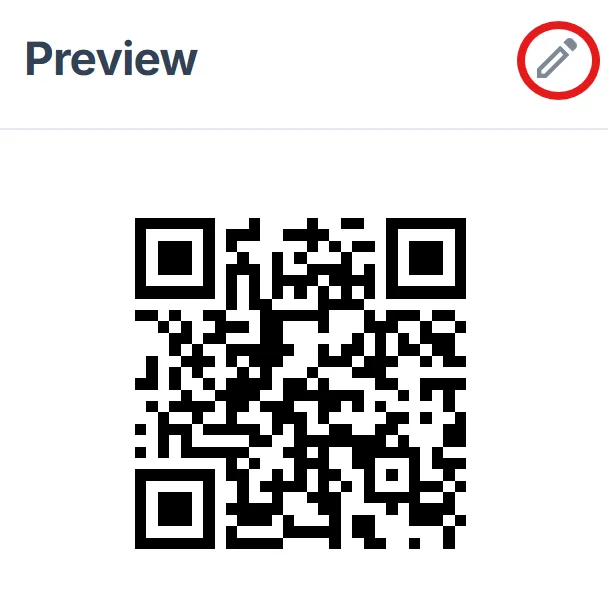
Change the QR code colors to match Discord's purple theme (#5865F2) or your server's brand colors. Add your server name or logo to help people identify what they're joining. For more customization ideas, check out our QR code design tips.
Download and test thoroughly
Save your QR code as a high-resolution PNG for printing or SVG for digital use. Test it with multiple phones to ensure it opens Discord properly before sharing.
Discord QR code best practices for server growth
Smart placement and design choices can significantly increase how many people actually scan your Discord QR code and join your community.
Set your Discord invite to never expire and allow unlimited uses to avoid broken QR codes. Check your invite settings regularly since some Discord invites have default expiration times. Consider using dynamic QR codes if you need to update your invite link later without reprinting materials.
Include clear text like 'Scan to join our Discord server' near your QR code so people understand what happens when they scan it, especially at gaming events where QR codes might link to anything.
Test your QR codes on both iOS and Android devices since they handle Discord links slightly differently. Make sure the code opens the Discord app directly rather than just the web browser.
Consider using dynamic QR codes if you plan to change Discord servers or want to track how many people scan your code from different locations or events.
Frequently Asked Questions
Do Discord QR codes work if someone doesn't have the Discord app installed?
Yes, the QR code will open Discord in their web browser and prompt them to download the app or continue in the browser. However, they will only work properly if the person scanning has a Discord account Most people prefer downloading the app for better functionality.
Can I create QR codes for Discord voice channels or specific text channels?
QR codes work best with server invite links rather than direct channel links. When people join through your QR code, you can set up welcome channels to guide them to specific areas of your server.
How do I track how many people join my Discord through QR codes?
Discord's built-in invite analytics show you how many people used each invite link. You can create unique invite links for different QR code placements to track which locations drive the most members.
What size should I make Discord QR codes for printing?
Print QR codes at least 1 inch (2.5cm) square for reliable scanning. For convention banners or posters, go larger - 3-4 inches works well for codes people scan from several feet away.
Are Discord QR codes free to create and use?
Yes, you can create unlimited Discord QR codes for free. The codes work permanently as long as your Discord invite link remains active and your server stays public.
Related Guides
Ready to create your QR code?
Generate custom QR codes in seconds - free and easy to use.
Create Free QR Code →