Box QR code generator for cloud file sharing

Transform Box file sharing with scannable codes that give instant access to documents, folders, and presentations.
How Box QR codes simplify file sharing
What if you could eliminate the hassle of typing long Box URLs, searching through email attachments, or explaining complicated folder paths? QR codes can solve these common file-sharing frustrations by turning any Box link into a scannable code that provides instant access to your cloud content, similar to how you can turn your PDF into a QR code for easy sharing.

A Box QR code contains the direct URL to your Box file, folder, or shared link. When someone scans the code with their smartphone camera, they'll be immediately taken to your Box content without needing to manually enter URLs or navigate through multiple folders. This works for any Box content you can share - from individual documents and presentations to entire project folders.
In this guide I'll walk you through creating these codes and show you how they can transform everything from client presentations to team collaboration. You can generate these codes using QR Code Developer or explore other types of QR codes for different sharing needs. So let's dive right in!
Practical applications for Box QR codes
Box QR codes work particularly well in professional settings where quick access to cloud files can save time and reduce friction. These codes bridge the gap between physical and digital spaces, making your business cards and printed materials more interactive.
Client presentations and proposals
Add QR codes to printed proposals that link to detailed Box folders containing supporting documents, case studies, or interactive presentations clients can review at their own pace. This approach works particularly well when you add a QR code to your flyer or marketing materials.
Conference materials and handouts
Include codes on conference badges, booth displays, or printed handouts that connect attendees to Box folders with presentation slides, resource libraries, or follow-up materials. For specific occasions, you might also consider creating event QR codes to enhance attendee engagement.
Team onboarding and training
Create codes for training manuals or welcome packets that link new employees directly to Box folders containing policies, procedures, training videos, and department-specific resources.
Project collaboration and updates
Share codes in Slack channels, email signatures, or printed project boards that give stakeholders instant access to current project files, timelines, and status reports stored in Box.
Creating QR codes for your Box content
The process involves getting the shareable link from Box and converting it into a scannable QR code. Here's how to set this up:
Open your QR code generator
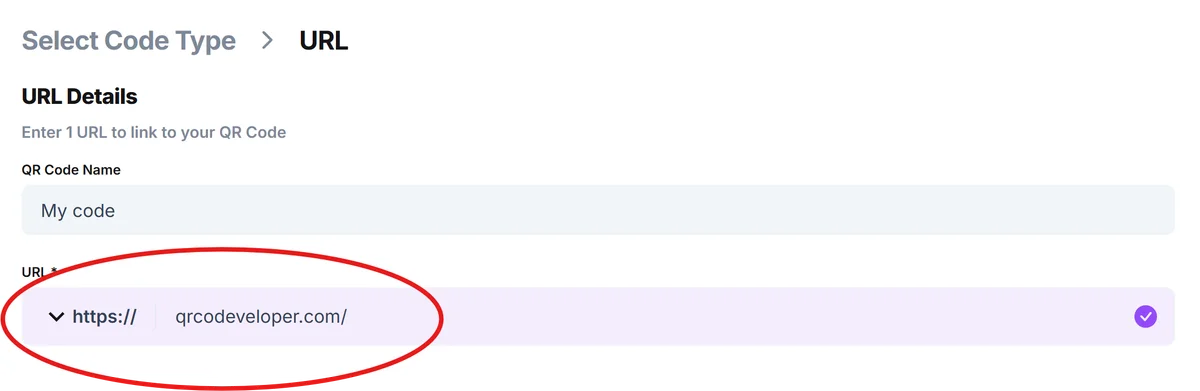
Navigate to qrcodeveloper.com and select the URL option since you'll be linking to your Box content.

Get your Box sharing link
In Box, right-click on your file or folder, select 'Share', then 'Create Shared Link'. Copy this URL - it will look something like 'https://app.box.com/s/[unique-identifier]'.
Configure sharing permissions
Before generating your QR code, verify your Box sharing settings. Choose whether people need Box accounts to access your content or if you want public access for broader reach.
Customize your QR code design
Add your company colors or logo to match your brand. Consider the context where people will scan this code - if it's going on a dark background, ensure good contrast for reliable scanning. For more guidance on visual appeal, check out our QR code design tips.

Test and distribute your code
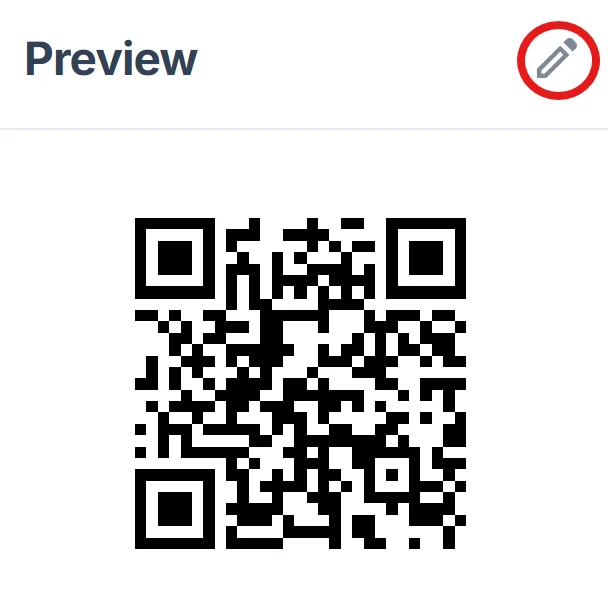
Download your QR code and test it with multiple devices to ensure it opens your Box content correctly. Save it in high resolution if you're printing it on materials like brochures or business cards.
Best practices for Box QR code implementation
Getting the most value from your Box QR codes requires attention to both technical setup and user experience:
Set appropriate Box permissions before creating your QR code - decide whether viewers need Box accounts or if you want public access, and regularly audit who has access to shared content. Understanding the security implications is crucial, so consider reading about QR code safety to protect your shared content.
Include brief context near your QR code explaining what people will find when they scan it, such as 'Scan for project resources' or 'Access presentation materials' to set proper expectations
Monitor your Box analytics to see how often shared content is accessed, and update or remove QR codes that link to outdated files to maintain a professional impression
Create backup plans for important shared content by ensuring critical files are also available through other channels, since Box outages or permission changes could affect QR code accessibility
Frequently Asked Questions
This depends on your sharing settings. You can create public shared links that anyone can access, or restrict access to people with Box accounts. Choose based on your security requirements and audience.
Box provides analytics on shared link activity, showing view counts and access times. However, you won't see specific details about who scanned your QR code unless they sign in to Box.
Shared links typically remain valid even if you rename files, but moving files to different folders or changing sharing permissions can break the links. Test your QR codes after making changes to Box content.
Yes, but users will need to enter the password after scanning the QR code. Consider whether this extra step aligns with your goal of making access more convenient.
Creating QR codes is free with most generators, including basic customization options. Your Box subscription determines sharing capabilities and storage limits for the content you're linking to.
Related Guides
Ready to create your QR code?
Generate custom QR codes in seconds - free and easy to use.
Create Free QR Code →